Registering WebMCP Tools [Experimental]
This tutorial covers @cesium-ai/webmcp-cesium, which
registers this app's CesiumJS viewer tools on document.modelContext — the browser-native
WebMCP Imperative API — so an agent already running
inside the same browser tab can discover and call them directly against the live Viewer.
Chrome only, for now. WebMCP is currently only implemented in Chrome (behind a flag or origin trial — see §3). Other browsers don't expose
document.modelContextat all, so everything in this tutorial needs to be tried in Chrome.
1. What WebMCP is (and how it differs from MCP)
WebMCP is a proposed web standard, separate from the
Model Context Protocol this repo's
@cesium-ai/mcp-tools package speaks:
WebMCP (document.modelContext) |
MCP (what @cesium-ai/mcp-tools connects to) |
|
|---|---|---|
| Where the tool lives | Registered by the page itself, in the browser | A separate server process |
| Who calls it | An agent already running in that browser tab (Chrome's built-in AI, or an extension) | Any MCP client (VS Code Copilot, Claude Desktop, this app's own backend, ...) |
| Transport | In-page DOM API | stdio / HTTP / SSE, over the network |
| This repo's role | Exposes its own Viewer tools this way (@cesium-ai/webmcp-cesium) |
Consumes external servers this way (@cesium-ai/mcp-tools) — the opposite direction |
This means registering a tool with @cesium-ai/webmcp-cesium does not make it callable from VS
Code Copilot's or Claude Desktop's MCP configuration. Those clients connect to a separate server
process over stdio/HTTP/SSE; document.modelContext only exists inside a browser tab's DOM and has
no server counterpart to point that configuration at. See §4
below for what to use instead if that's what you actually need.
2. How it's wired into this app
frontend/src/tools/webmcp-tools.ts
calls registerCesiumWebMcpTools, narrowing ENABLED_CESIUM_TOOLS (@cesium-ai/sample-config) to
just the viewer tools @cesium-ai/webmcp-cesium covers (it excludes executeCesiumCode, which has
no client-side executor), and reusing this app's own flyTo override
(flyToLocation, the same one the chat-driven executors use — see the
Cesium Viewer Tools Tutorial):
export function registerAppWebMcpTools(viewer: Viewer) {
  return registerCesiumWebMcpTools(viewer, {
    enabled: ENABLED_WEBMCP_TOOLS,
    executors: { flyTo: flyToLocation },
    logger: import.meta.env.DEV
      ? createConsoleLogger({ scope: "webmcp-cesium", level: "info" })
      : undefined,
  });
}
frontend/src/App.tsx
calls this once the live Viewer is ready (CesiumGlobe's onViewerReady), and calls the returned
unregister() on onViewerDestroy. registerCesiumWebMcpTools is safe to call unconditionally — in
a browser without WebMCP support it just logs a warning and resolves an empty registration instead
of throwing.
3. Enable and test it in Chrome
WebMCP isn't shipped by default yet, and right now it's implemented in Chrome only (no other
browser currently supports document.modelContext), so you need one of:
- Local flag (fastest for development): open
chrome://flags/#enable-webmcp-testing, set it to Enabled, and relaunch Chrome. - Origin trial: join the WebMCP origin trial if you need this to work for other visitors without them flipping a flag themselves.
Then:
- Run this app (
npm run dev) and openhttp://localhost:5173. - Install the Model Context Tool Inspector extension and open it on that tab. This is Chrome's own way to imitate agent chat with the inspector extension, and it lets you:
- See every tool this app has registered on
document.modelContext, along with itsinputSchemaandreadOnlyHint. - Manually pick a tool, edit its JSON input arguments, and execute it directly against the live Viewer.
- Chat with the page in natural language — prompts go to
gemini-3-flash-previewby default (set your own key via the extension's Interact with the Page panel) — and watch which tool it picks and with what arguments. - Confirm the Cesium tools (
flyTo,cameraSetView,entityAdd,entityList, ...) show up under its registered-tools list. - Try a natural-language prompt in the extension (e.g. "fly to Paris" or "list every entity on the globe") and confirm it picks the right tool — the globe should visibly react the same way it does when the in-app chat panel calls the same tool.
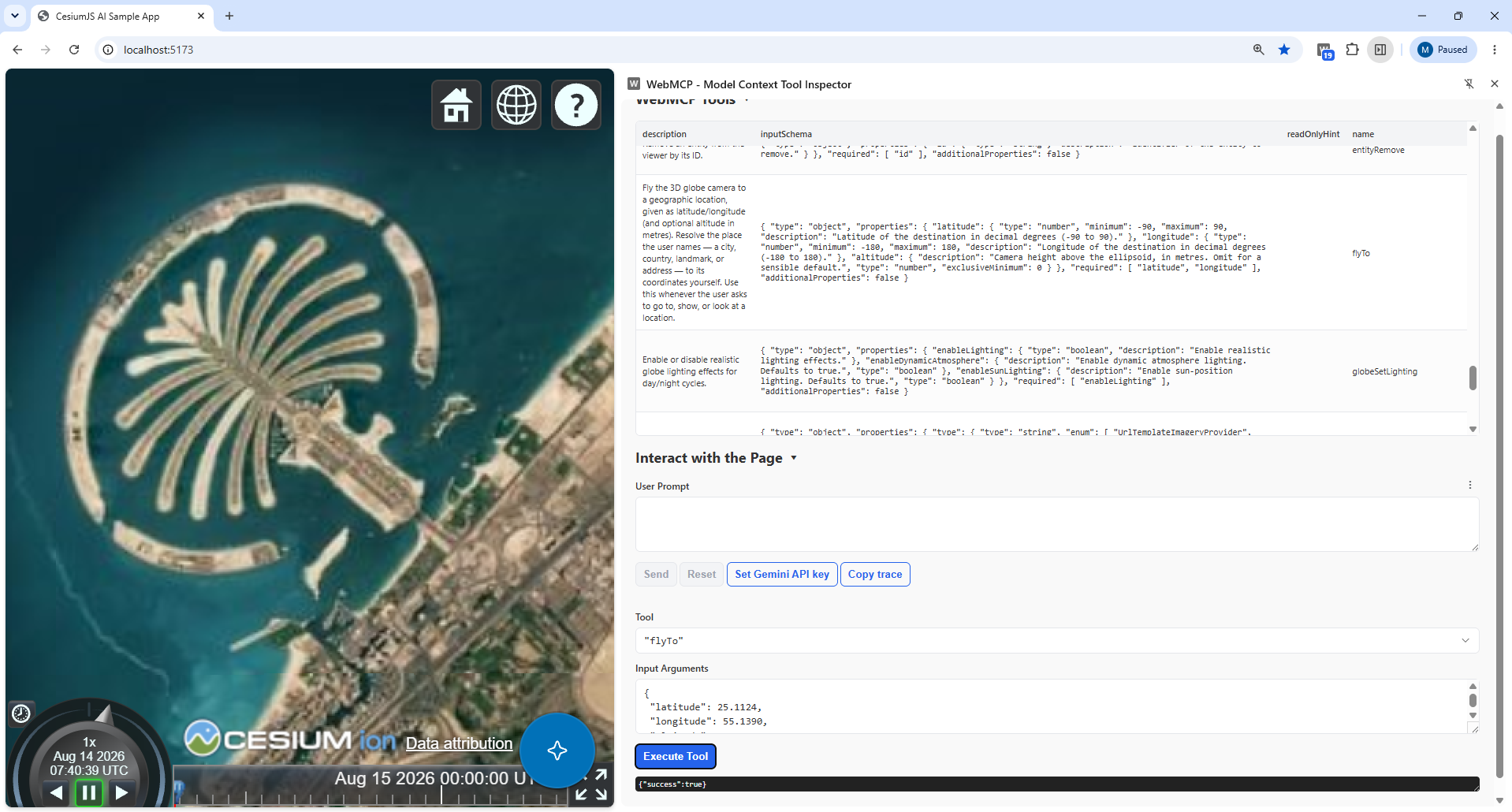
You can also check this from the page's own DevTools console, without the extension:
"modelContext" in document; // true once the flag/origin trial is active
const tools = await document.modelContext.getTools();
console.log(tools.map((t) => t.name));

// Manually call one:
const flyTo = tools.find((t) => t.name === "flyTo");
await document.modelContext.executeTool(
  flyTo,
  JSON.stringify({ latitude: 48.85, longitude: 2.35 }),
);
If document.modelContext is undefined, double check the flag is enabled and Chrome was
relaunched (not just the tab reloaded) — this is the most common reason nothing shows up.
4. Using this with VS Code Copilot or Claude Desktop
See the transport comparison in §1: VS Code Copilot's
and Claude Desktop's MCP configuration only speaks real MCP over stdio/HTTP/SSE to a separate server
process, and document.modelContext only exists inside a browser tab's DOM — neither can connect to
it directly without something in between that drives a real browser and relays the calls over MCP.
As of Chrome 150 + a recent release, chrome-devtools-mcp
is exactly that bridge: it's a real MCP server (stdio, connectable from VS Code/Claude Desktop like
any other) with an experimental WebMCP category — list_webmcp_tools / execute_webmcp_tool —
that lists and calls whatever the page it's driving has registered on document.modelContext. Since
this app already registers its Cesium tools there (§2 above), that category exposes them to whichever
MCP client is running chrome-devtools-mcp. To try it:
- Add
chrome-devtools-mcpto your MCP client's config (e.g..vscode/mcp.json), turning on the WebMCP category and the Chrome flag it requires:(Use{ "servers": { "chrome-devtools": { "command": "npx", "args": [ "-y", "chrome-devtools-mcp@latest", "--categoryExperimentalWebmcp=true", "--chromeArg=--enable-features=WebMCP" ] } } }--browserUrl/--autoConnectinstead if you'd rather point it at an already-running, remote-debugging-enabled Chrome — seechrome-devtools-mcp's own README.) - Have the agent navigate to this app (
navigate_pagetohttp://localhost:5173) once it's running. - Ask the agent to call
list_webmcp_tools— it should return this package's registered tools (flyTo,cameraSetView,entityAdd,entityList, ...), callable viaexecute_webmcp_tool.
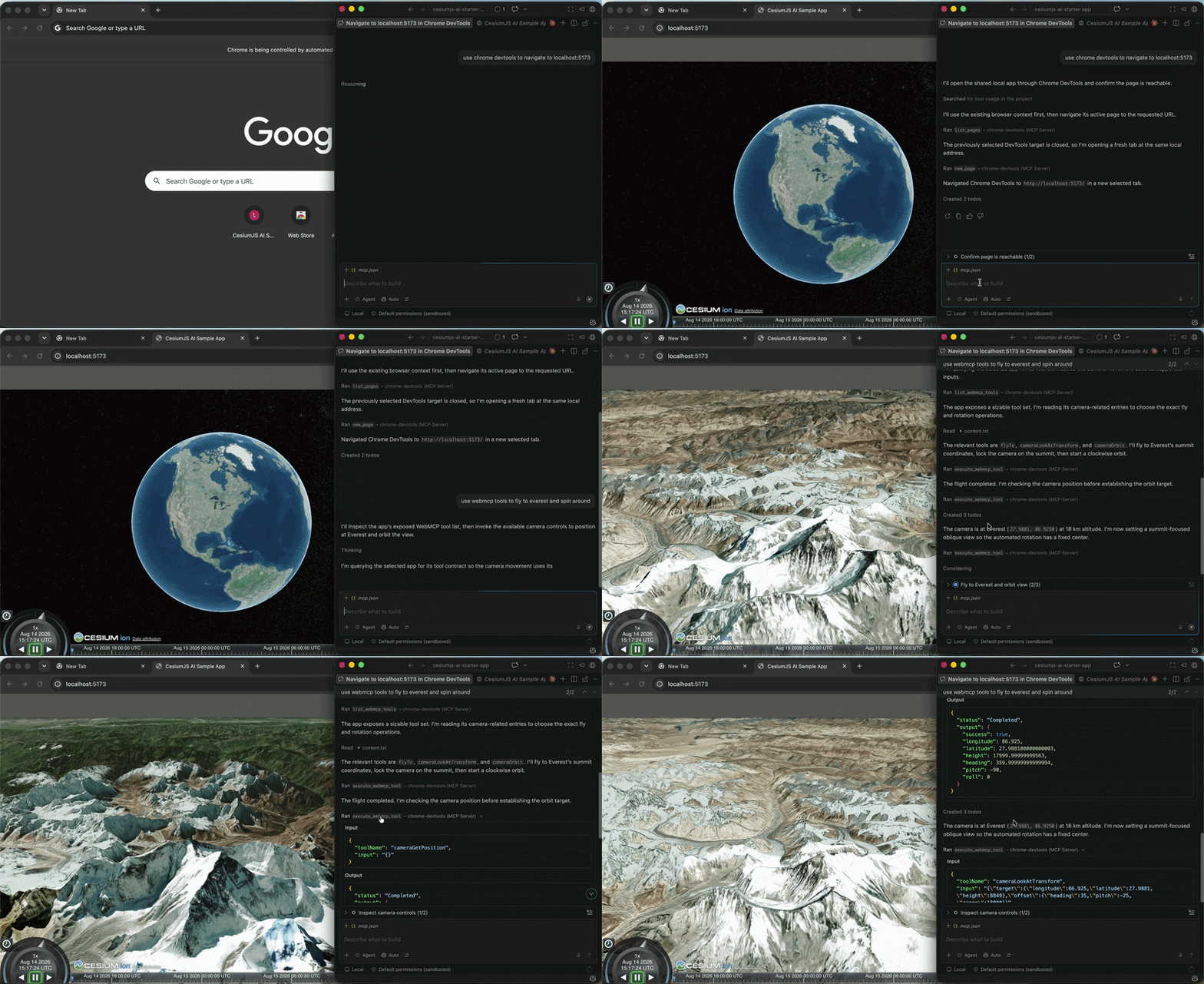
This is still an experimental, actively-changing category of a third-party tool, not a stable integration path — treat it as a way to test/demo this package's WebMCP registration from Copilot or Claude, not a production architecture.