Adding an MCP Server

This tutorial covers @cesium-ai/mcp-tools, the optional,
server-only bridge that connects this starter's chat agent to one or more
Model Context Protocol (MCP) servers. It walks through adding
a server to your config, how the backend hooks its tools into the agent loop, and how to verify
the connection and try a tool call end to end.
For the underlying component model and sequence diagrams, see MCP Support Architecture. This tutorial is the task-oriented "how do I actually configure one" companion to that document.
1. How it works end to end
Unlike flyTo (executed in the browser) or executeCesiumCode (generated server-side, executed
in the browser), an MCP tool's execute() calls the MCP server directly from Node — its result
is the final outcome, never re-executed client-side. Here is what happens once a server is
configured:
- At backend startup,
backend/src/index.tscallscreateMcpTools({ servers: env.MCP_SERVERS })— connecting to every configured server and discovering its tools, once, before the HTTP server starts listening. - Each server's tools are namespaced
mcp__<serverName>__<toolName>and merged into the same tool registryflyTo/executeCesiumCodelive in (backend/src/app.ts). - A chat turn that needs one of these tools works exactly like any other tool call — the model decides to call it, the browser shows an approval prompt (every MCP tool is approval-gated by default), and on approval the backend forwards the call to the MCP server and streams back the final result.
For the full sequence diagram, see MCP Support Architecture § Sequence — connecting at startup, then a tool-calling turn.
2. Configure servers
Server config is a JSON array of McpServerConfig objects, read once at backend startup. The
preferred place to put it is a repo-root mcp.config.json file (already in .gitignore so
secrets don't end up in version control):
[
  {
    "name": "docs",
    "transport": { "type": "http", "url": "https://example.com/mcp" },
    "allowedTools": ["search"]
  },
  {
    "name": "maps",
    "transport": { "type": "sse", "url": "https://maps.example.com/sse" }
  }
]
See mcp.config.json.example
for a commented template. Alternatively, set the MCP_SERVERS env var in your root .env to the
same JSON array — mcp.config.json takes priority when both are present.
Each entry has this shape:
interface McpServerConfig {
  name: string; // unique — used for namespacing (mcp__<name>__<tool>) and logs
  transport: {
    type: "sse" | "http"; // stdio (spawning a local executable) is deliberately unsupported
    url: string;
    headers?: Record<string, string>; // e.g. { Authorization: "Bearer ..." } for static auth
    oauth?: McpOAuthConfig; // optional OAuth overrides — see "OAuth-authenticated servers"
  };
  allowedTools?: readonly string[]; // omit = expose every tool the server advertises
}
McpServerConfigsSchema (used by backend/src/utils/mcp-servers-config.ts) validates this at
startup: an invalid transport type, a malformed URL, or a duplicate name fails env validation
with a clear message rather than connecting to something unexpected.
Config is trusted, operator-supplied input — never derived from a chat request. A server URL controls what code effectively runs on your behalf; only add servers you trust the same way you'd trust an LLM API key.
Static header authentication
If a server needs a static bearer token or API key, pass it via headers:
MCP_SERVERS=[{"name":"docs","transport":{"type":"http","url":"https://example.com/mcp","headers":{"Authorization":"Bearer sk-..."}}}]
Static headers are the right choice for a single shared bearer token or API key that applies to every visitor. For servers that need a user's own identity (e.g. Cesium ion), see the OAuth section below.
OAuth-authenticated servers
Some MCP servers require per-user OAuth rather than a shared token. This app handles them automatically:
- At startup,
createMcpToolstries to connect every configured server the same way — no static "this one needs OAuth" flag. A server that returns 401 is auto-detected as needing per-user authentication and collected inmcp.authRequiredServersinstead of failing hard. createSessionMcpManageris then built from that list, making those servers available for per-browser-session "Connect" flows from the chat panel's Tools popover.- Each user's OAuth tokens live only in process memory and are never written to disk or sent to the browser — they're discarded when the session ends or the process restarts.
To pre-configure OAuth overrides for a server (e.g. a pre-registered clientId, or a scope the
provider requires but doesn't advertise in its metadata), add an oauth field to that server's
transport config:
{
  "name": "ion",
  "transport": {
    "type": "http",
    "url": "http://localhost:3000/mcp/",
    "oauth": {
      "clientId": "<your OAuth application's client ID>",
      "scope": "assets:list assets:read assets:write"
    }
  }
}
Omit clientId entirely to use RFC 7591 dynamic client registration — the server registers the
client automatically on first connection. scope is normally discovered from the server's RFC 9728
Protected Resource Metadata; only set it explicitly when a provider requires it but omits
scopes_supported. The callback redirect URL is always <PUBLIC_URL>/api/mcp/callback — register that
single URL with the OAuth provider before initiating a connection.
SESSION_SECRET must be set in your .env whenever any OAuth-authenticated server is
configured — the session cookie that carries per-user tokens depends on it.
For the full OAuth flow sequence diagram, see MCP Support Architecture § Session-scoped interactive OAuth connect.
Restricting which tools are exposed
Omitting allowedTools exposes every tool the server advertises. For any server you don't fully
control, prefer an explicit allowlist — it limits what the model can call to only the tools you've
reviewed, and protects against the server later adding new, unreviewed tools:
[
  {
    "name": "docs",
    "transport": { "type": "http", "url": "https://example.com/mcp" },
    "allowedTools": ["search", "getPage"]
  }
]
Per-call timeout
MCP_TOOL_TIMEOUT_MS (default 30000) bounds how long the backend waits for any single MCP tool
call before rejecting it — applies to every configured server:
MCP_TOOL_TIMEOUT_MS=15000
3. How the backend hooks a server's tools into the agent loop
Nothing else needs to change in your code — connecting and merging happens automatically once any server is configured. It's still useful to know where the wiring lives:
Connect at startup + auto-detect OAuth servers — backend/src/index.ts:
// Every server is attempted the same way — no static "needs OAuth" flag.
// A 401 response is auto-detected and collected in mcp.authRequiredServers.
const mcp =
  env.mcpServers.length > 0
    ? await createMcpTools({
        servers: env.mcpServers,
        timeoutMs: env.MCP_TOOL_TIMEOUT_MS,
        logger: createConsoleLogger({ scope: "mcp-tools", level: "info" }),
      })
    : undefined;

// Build a session manager for per-user OAuth flows only when needed.
const sessionMcp =
  mcp && mcp.authRequiredServers.length > 0
    ? createSessionMcpManager({
        servers: mcp.authRequiredServers,
        buildRedirectUrl: () => new URL("/api/mcp/callback", env.PUBLIC_URL).href,
        timeoutMs: env.MCP_TOOL_TIMEOUT_MS,
        logger: createConsoleLogger({ scope: "mcp-tools", level: "info" }),
      })
    : undefined;
Merge into the registry + approval-gate (per-request for session tools) — backend/src/app.ts:
// Static tools (shared by every request): viewer tools + executeCesiumCode + operator MCP tools.
const staticTools: ToolSet = {
  ...createCesiumTools({ enabled: ENABLED_CESIUM_TOOLS, flyTo: { inputSchema: flyToInputSchema } }),
  ...(model
    ? { [CODEGEN_CESIUM_TOOL_NAMES.executeCesiumCode]: createExecuteCesiumCodeTool({ model }) }
    : {}),
  ...(mcp?.tools ?? {}),
};

// Per-request: merge in this session's user-initiated MCP connections on top.
const buildTools = async (req: Request) => ({
  ...staticTools,
  ...(await resolveMcpTools({ sessionMcp }, req.sessionID)),
});

app.use(
  createChatRouter({
    model,
    tools: buildTools,
    // Every MCP tool (static or session) is approval-gated by the mcp__ prefix convention.
    resolveToolApproval: (resolvedTools) => ({
      [CODEGEN_CESIUM_TOOL_NAMES.executeCesiumCode]: "user-approval",
      ...Object.fromEntries(
        Object.keys(resolvedTools)
          .filter((name) => name.startsWith("mcp__"))
          .map((name) => [name, "user-approval"]),
      ),
    }),
  }),
);
Shut down cleanly — mcp.close() and sessionMcp.closeAll() are called on SIGTERM/SIGINT
in index.ts, closing every underlying MCP client connection.
None of this requires editing shared/src/enabled-tools.ts (unlike flyTo/executeCesiumCode) —
an MCP server's tools are discovered dynamically at connect time, not hand-declared ahead of time.
4. Verify the connection
Restart the backend (mcp.config.json/.env changes require a restart — there's no live-reload
for config) and check the startup log:
  mcp: "docs" connected (2 tool(s))
  mcp: "ion" requires per-user authentication — available via the chat panel's Connect button
or, on failure:
mcp: "maps" failed to connect: <error message>
A connection failure for one server never prevents the others (or the rest of the app) from starting — it's recorded, not thrown.
You can also check GET /health, which includes a mcpServers array (only present when at least
one server is configured):
curl http://localhost:3001/health
{
  "status": "ok",
  "provider": "openai",
  "providerConfigured": true,
  "mcpServers": [
    { "name": "docs", "connected": true, "toolNames": ["search"] },
    { "name": "ion", "connected": false, "authRequired": true }
  ]
}
If connected is false and authRequired is true, the server is waiting for a user to
connect it from the chat panel's Tools popover. If connected is false and there's no
authRequired, an error field explains why (e.g. an unreachable URL).
5. Try it in the chat panel
Operator-configured (non-OAuth) servers
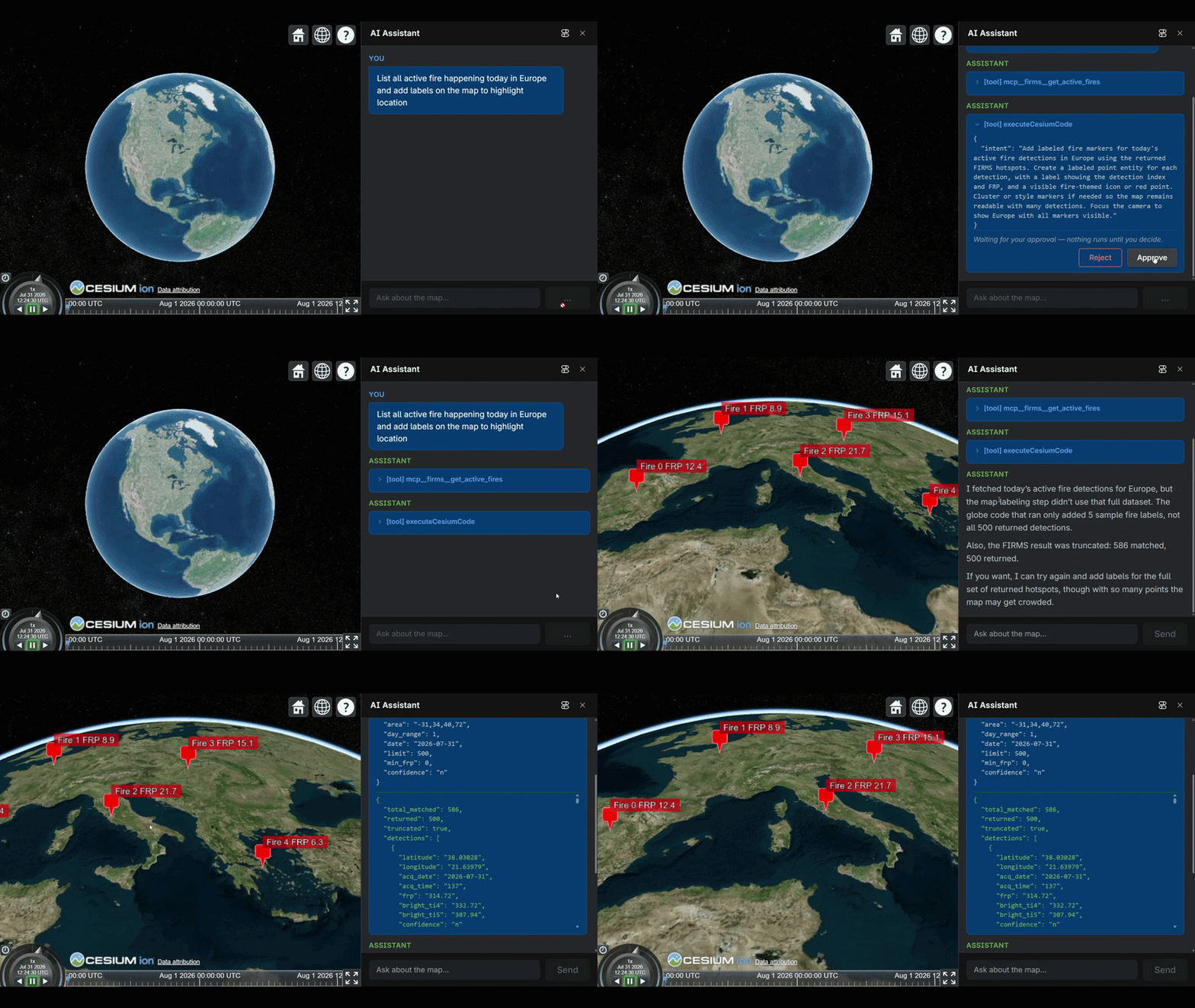
Once connected, ask the chat panel something that would naturally call the new tool — for example,
if you configured a docs server with a search tool: "search the docs for camera controls".
- The model decides to call
mcp__docs__search. - The chat panel shows an approval prompt (the same Approve/Reject UI
executeCesiumCodeuses) — nothing runs until you approve. - On approval, the backend forwards the call to the MCP server and returns the result; the model uses it to compose its final reply.
If the model never calls the tool, double-check allowedTools doesn't exclude it and that the
server actually advertises a tool relevant to your prompt (see toolNames in /health).
OAuth-authenticated servers
For a server that returned authRequired: true at startup:
- Open the Tools popover (top-left button in the chat panel). You'll see the server listed with a "Connect" button.
- If the server requires your own pre-registered client ID (e.g. Cesium ion), enter it in the "Your OAuth client ID (optional)" field before clicking Connect.
- A browser popup opens the OAuth authorization page — log in and grant consent.
- The popup closes automatically and the chat panel's Tools popover updates to show the server as connected with its discovered tools.
- Those tools are now available for the duration of your browser session — the model can call them the same way it calls any other MCP tool.
6. MCP Apps widgets
Some MCP tools declare an interactive HTML widget (a ui:// resource) alongside their plain
JSON result. When such a tool is called and approved, the chat panel renders the widget inline
inside the tool card — it can display rich UI, and can itself call tools back on its own MCP
server (with a per-call inline Approve/Reject prompt).
No extra configuration is required — if a server's tool declares a widget, it renders automatically. One thing to be aware of:
frontend/public/sandbox_proxy.htmlis the iframe sandbox proxy required byAppRenderer. It is already included in the repo and served at/sandbox_proxy.html. Pass a different URL viaAiChatPanel'smcpAppSandboxUrlprop if you host the frontend on a different origin.
For the full widget render pipeline, sequence diagram, component responsibilities, and security model, see MCP Apps Architecture.
7. Security checklist before adding a new server
- Only add servers you trust. Server config is operator input, equivalent in trust level to an LLM API key — never build it from user/chat input.
- Prefer
allowedToolsover a full, unreviewed catalogue — especially for a third-party server you don't operate yourself. - Use
createConsoleLogger({ scope: "mcp-tools", level: "info" })from@cesium-ai/observabilityand re-review the logged tool names/descriptions whenever a server's catalogue might have changed — an MCP server can silently reword a tool's description at any time (tool poisoning). - Leave approval gating on. Don't remove a tool's
"user-approval"entry unless you fully trust that specific server's tool to run unattended. stdiotransport is deliberately unsupported — onlysse/httpare accepted, so there's no way to configure this app to spawn a local executable via MCP.
See MCP Support Architecture § Security model and the package README for the full threat model.
8. Quick reference
| I want to… | Where to look |
|---|---|
| Add a new MCP server | mcp.config.json at the repo root (or MCP_SERVERS env var) — append an entry |
| Remove a server | Delete its entry from mcp.config.json and restart the backend |
| Restrict which tools a server exposes | allowedTools on that server's config entry |
| Add static auth (bearer token / API key) | transport.headers on that server's config entry |
| Add OAuth (per-user identity) | transport.oauth overrides; no mode flag needed — 401 is auto-detected |
| Change the per-call timeout | MCP_TOOL_TIMEOUT_MS env var (applies to every configured server) |
| Check whether a server connected | Backend startup log, or GET /health's mcpServers array |
| See which tools a connected server contributed | toolNames in /health's mcpServers entry for that server |
| See all registered tools (incl. session MCP tools) | GET /api/tools (session-cookie-aware; also shown in the chat panel's Tools popover) |
| Connect a per-user OAuth server | Chat panel → Tools popover → Connect button for that server |
| Set the OAuth callback redirect URL | Register <PUBLIC_URL>/api/mcp/callback with the OAuth provider |
| Understand MCP Apps widget rendering | MCP Apps Architecture |
| Customize the widget sandbox proxy URL | AiChatPanel's mcpAppSandboxUrl prop (default: /sandbox_proxy.html) |
| Understand the architecture | MCP Support Architecture |
| Review the full API and security model | @cesium-ai/mcp-tools README |